0 -> installation
If you'd prefer to follow a video installation, check out MO Chad's video on youtube.
downloading Aurora 4x🔗
The first step to beginning your odyssey is downloading the latest version of Aurora 4x. Sometimes, this is easy, sometimes, less so, for reasons that will be explained shortly.
The first step is navigating to the Aurora 4x forums and downloading the latest Full Installation.
Only Windows is officially supported and covered by this guide. Many have had success running on Linux through Wine or similar. I do not know anything about MacOS.
Feel free to ask in the Aurora 4x discord for non-windows help.
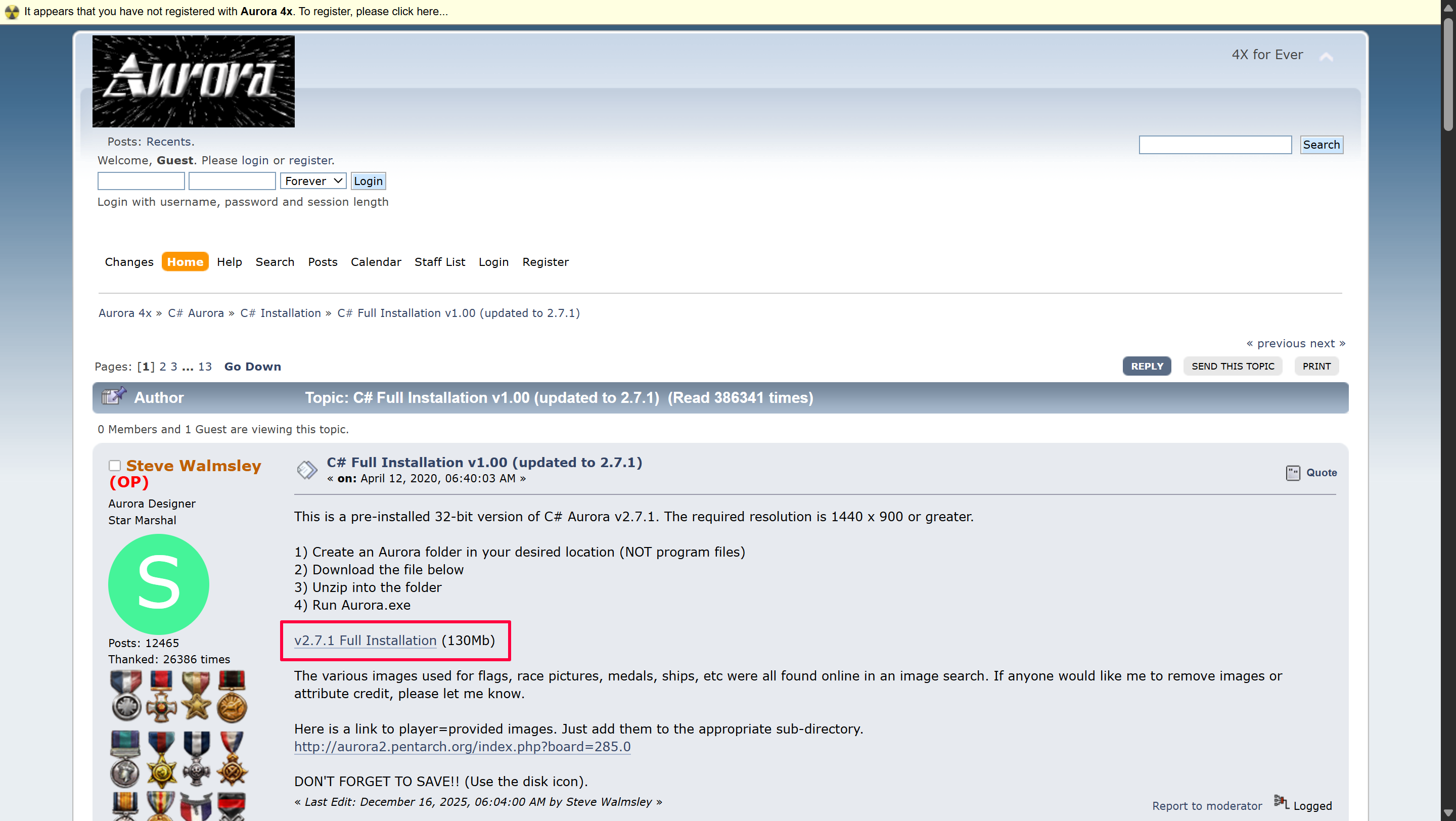
locating the download button
If you're not experienced in navigating forums, it can sometimes be hard to locate files. In this case, it's roughly in the middle of the page.
See the image to the right. The link to click is circled (rectangled?) in red.
All images can be clicked to open them in a full screen view if needed for small resolutions.
patching Aurora 4x🔗
Here is where things can get confusing. As of writing this, the latest full installtion is complete and requires no patching. However, that may not be the case whenever you're reading this.
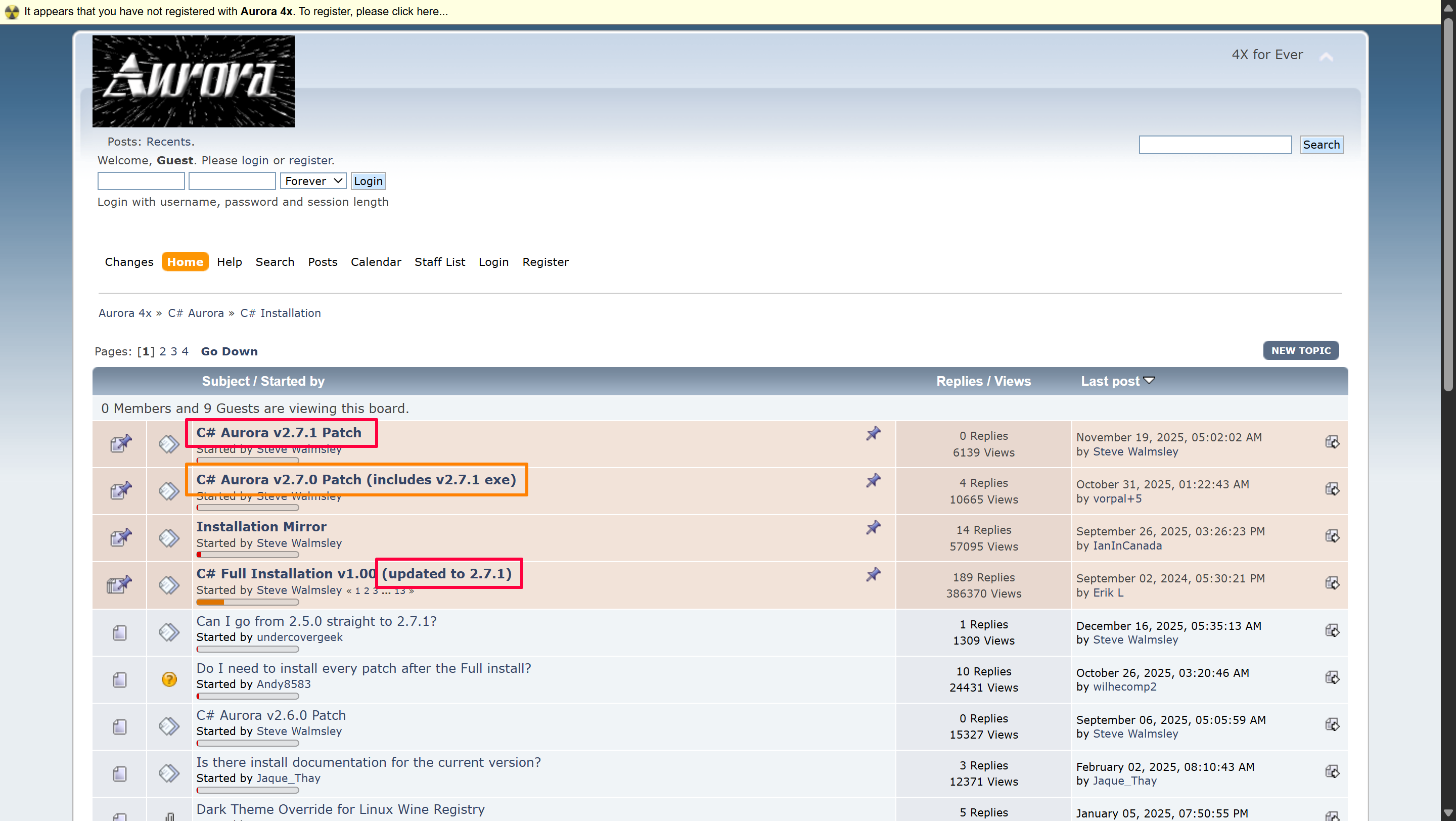
To figure out if you need to patch Aurora 4x, check this page, shown below.
checking if patches are needed
After opening the forum you'll see a few pinned pages.
Do the following:
-
Check if the latest patch version matches the full installation version.
- Both are highlighted in red in the image.
-
If the versions match, you're good to go.
-
If the versions do not match, you'll need to download the patches:
- Download the latest patch, shown in red.
- Download required intermediary patches, shown in orange, if present.
The forum pages for every patch should appear roughly equivalent to the page for the main version.
extracting files🔗
Once you have the files downloaded, all you need to do is extract the full installation, and then any patches on top of it. Below is a guide on doing that.
Modern windows releases have .rar support built-in, but if you're on an older version you may need to use a program like 7zip.
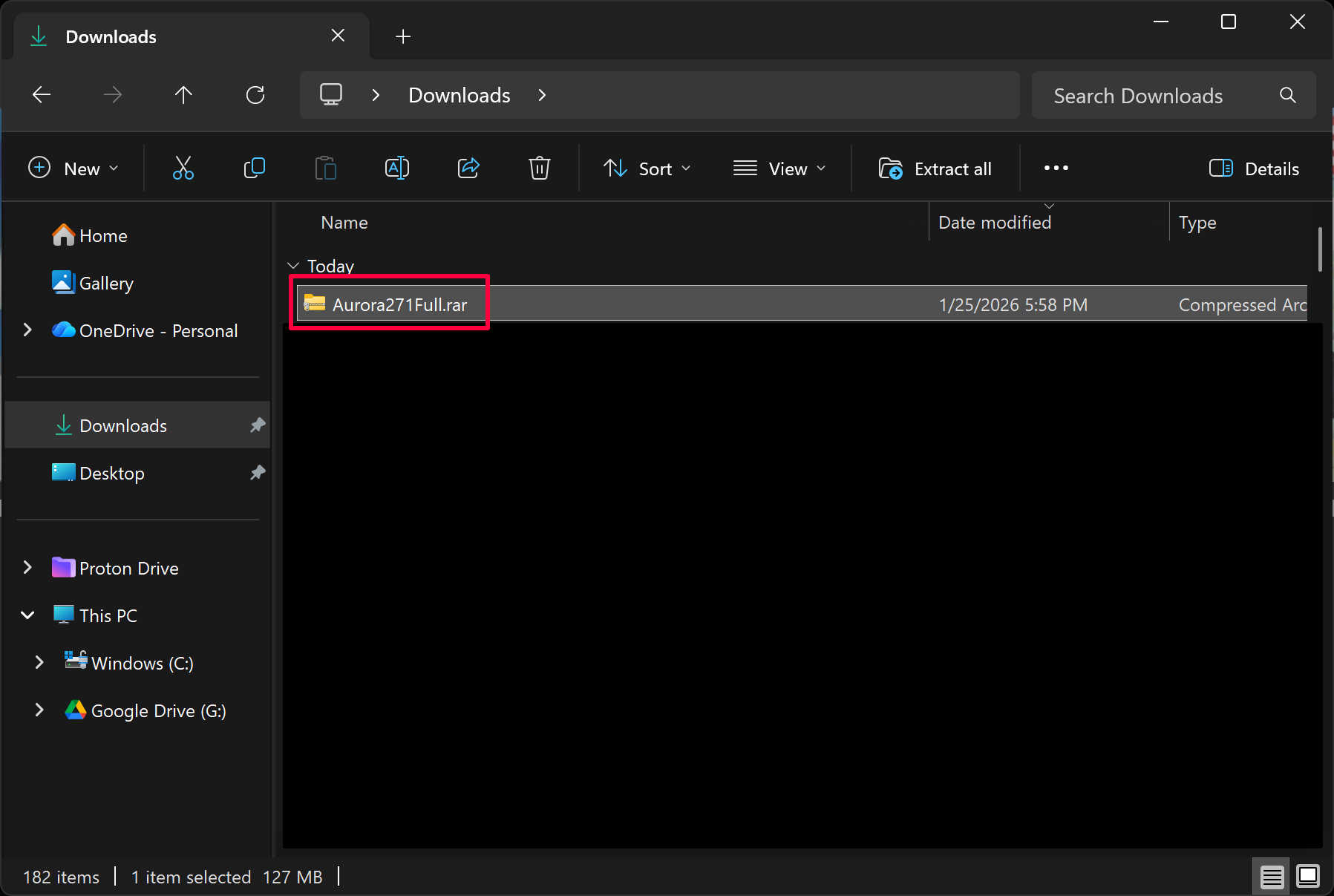
locating the downloaded files
Open File Explorer to wherever you saved your downloaded files.
Begin with the Full Installation rar file.
Once located, Right Click the file.
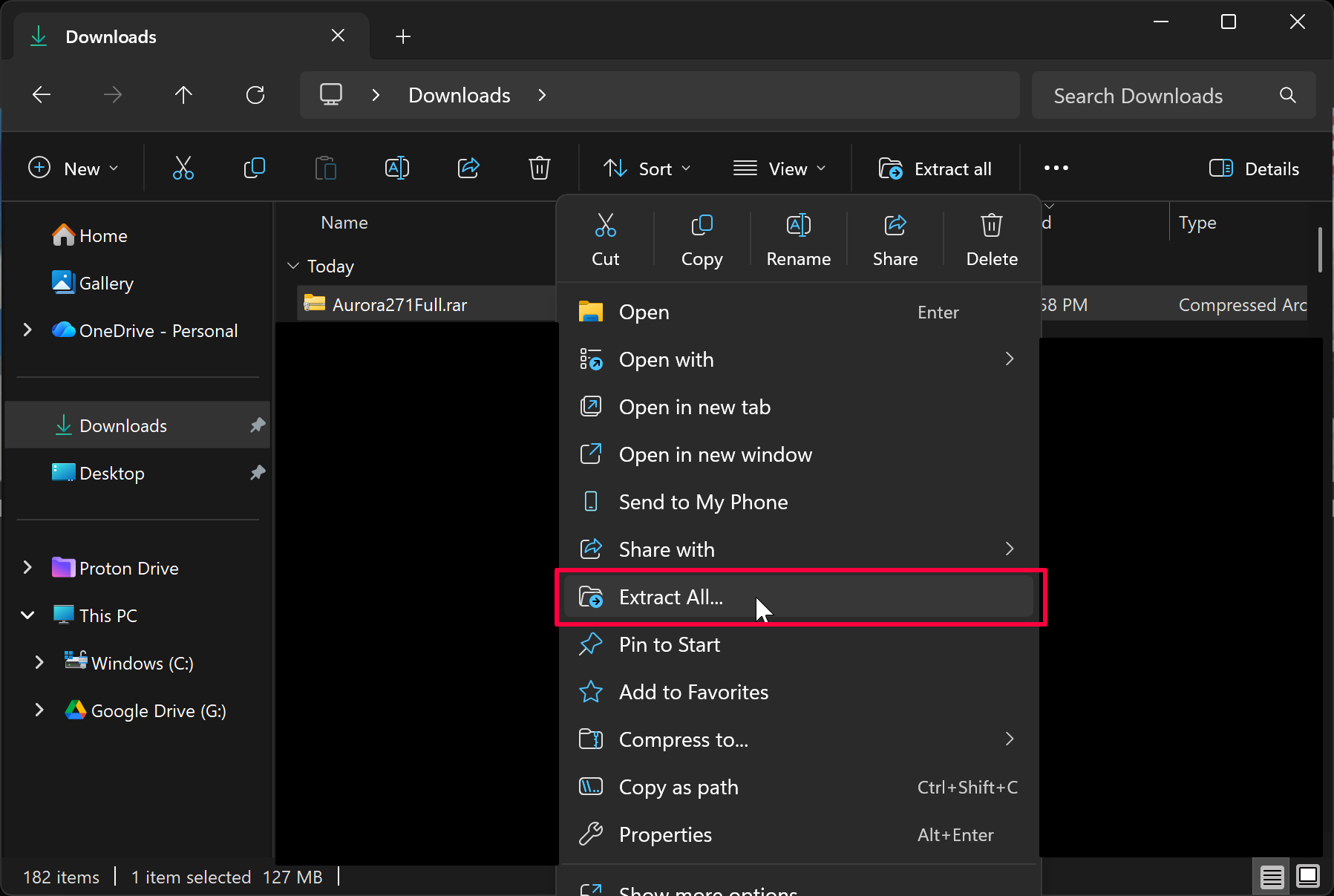
extracting the files
In the popup, click on "Extract All..."
In the dialogue that appears:
- Type or select a destination folder.
Avoid protected windows directories like Program Files, Program Files (x86), or Windows. These can have permission issues that prevent the game from saving and/or loading properly.
I would recommend you install the game in a new folder at the root of your drive, e.g. C:\Aurora4x, for the smoothest experience.
-
Optionally, tick Show extracted files when complete or simply open the folder manually after extraction.
-
Press extract.
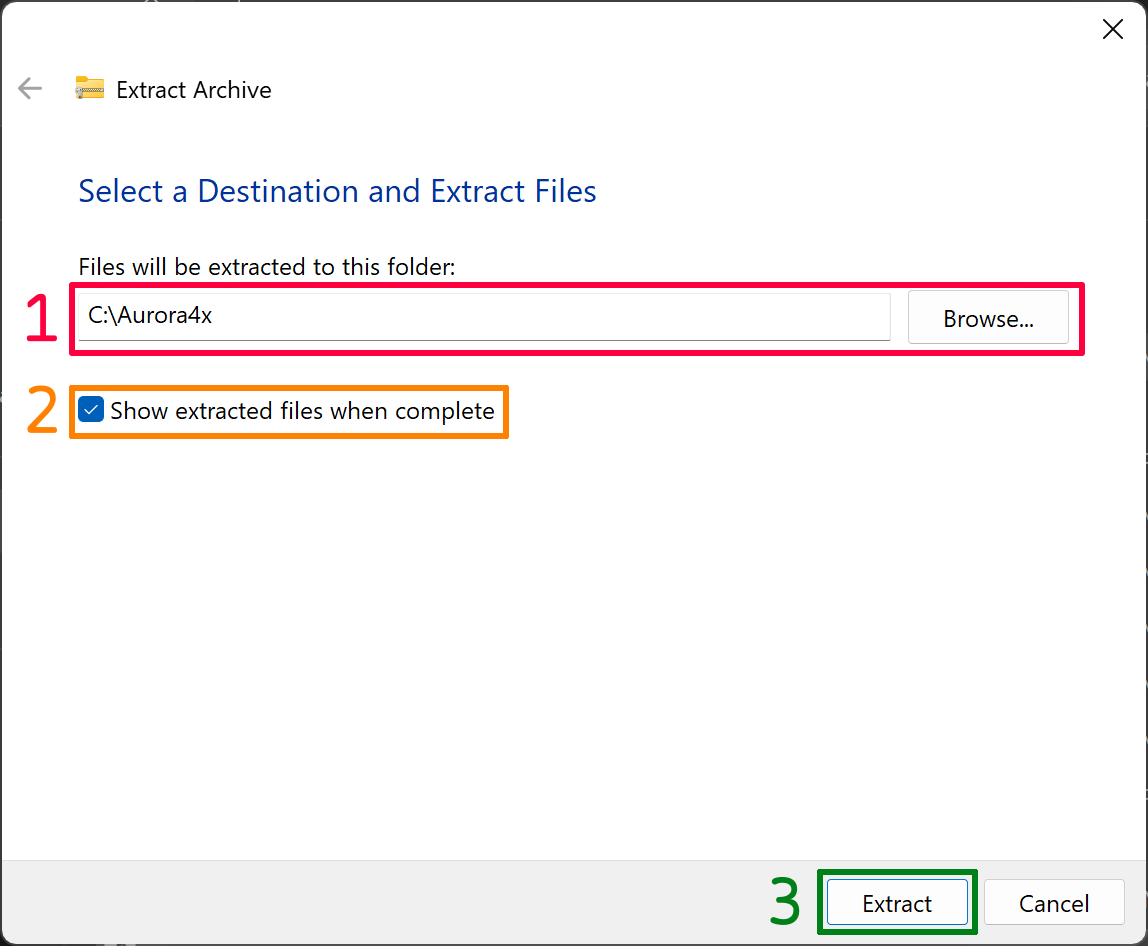
A window similar to the one shown on the right should appear.
Wait for it to finish extracting before continuing.
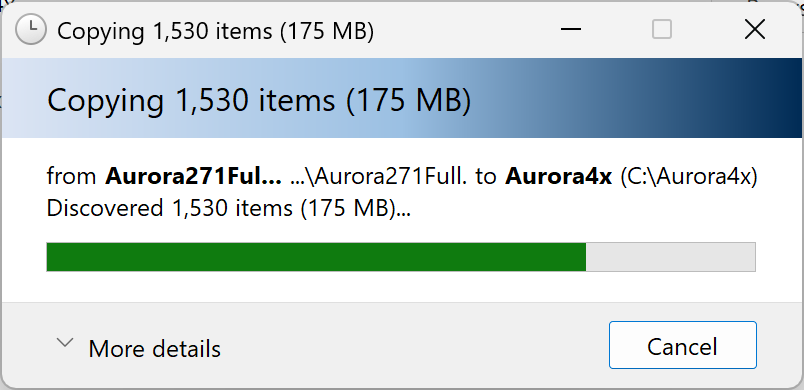
post extraction
If you downloaded any patches, repeat the above extraction steps for each patch.
- Begin with the oldest patch, then continue until reaching the latest.
- E.g. 2.0.0 -> 2.1.0 -> 2.1.7
- Ensure you extract all files in the same directory, replacing when asked.
If there wasn't a need to download any patches, navigate to the folder you've extracted the files to and locate Aurora.exe.
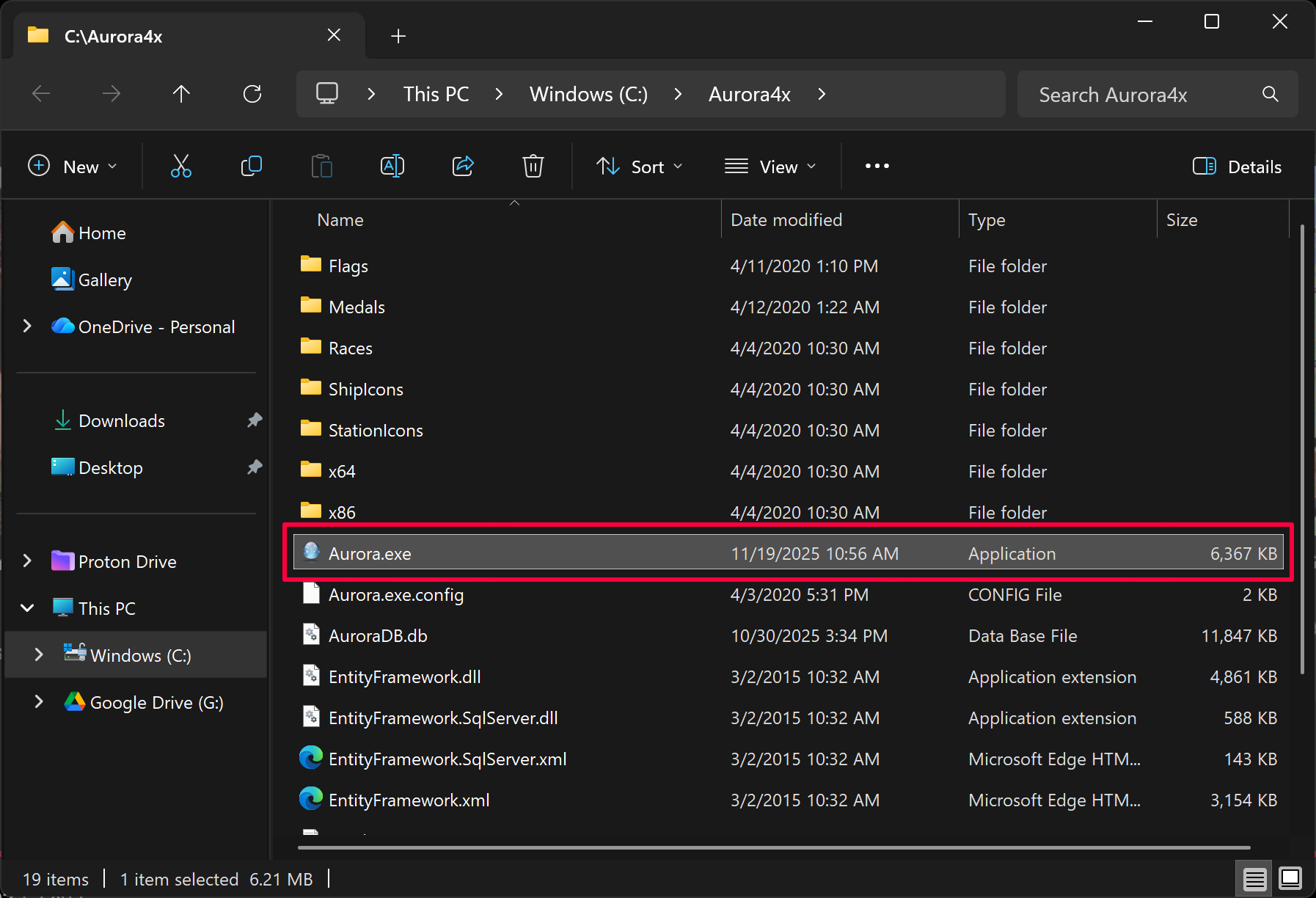
launching the game
After you've finished extracting, the game is installed and you can now double Left Click to lauch Aurora 4x and begin playing the game!
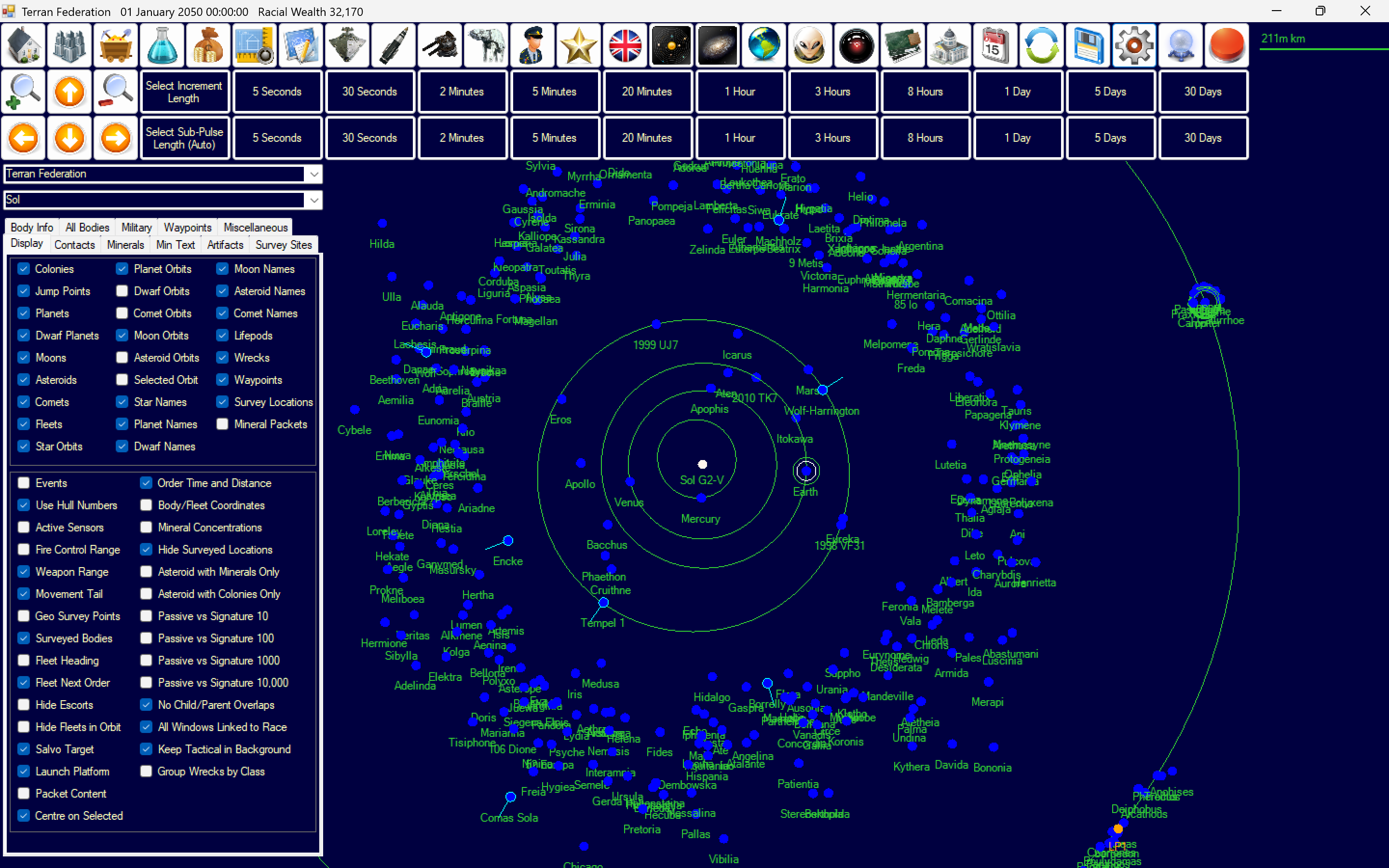
That's all, folks!
You can continue with this tutorial by clicking "setup ->" in the bottom right.